
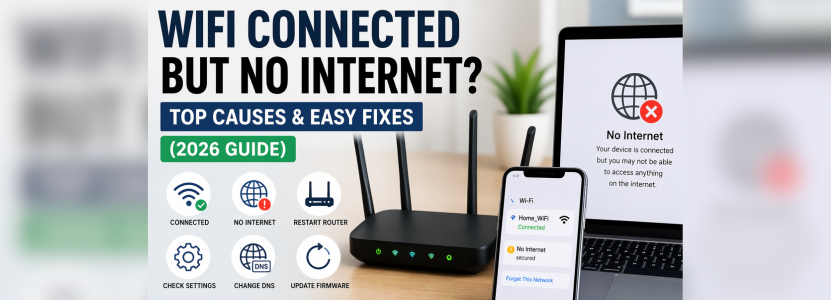
You connect your device to WiFi, the signal bars look perfect, yet nothing loads. No websites, no apps, no streaming-just frustration. If you’ve ever faced the “WiFi connected but no internet” issue, you’re not alone. It’s one of the most common network problems users encounter in homes and offices alike.
The good news? This issue is usually easy to fix once you understand what’s causing it.
In this guide, we’ll walk you through the top reasons why your WiFi shows connected but has no internet, along with simple, step-by-step solutions you can try right away.
What Does “WiFi Connected but No Internet” Mean?
When your device says it’s connected to WiFi, it means:
- Your device is successfully linked to the router
- But the router itself is not connected to the internet
So basically, your device can “talk” to the router, but the router can’t access the web.
Common Causes of WiFi Connected but No Internet
Let’s break down the most frequent reasons behind this issue.
1. Internet Service Provider (ISP) Outage
Sometimes the issue isn’t in your home at all. Your ISP may be facing downtime due to maintenance or technical problems.
Signs:
- All devices show no internet
- Router lights may blink abnormally
- Issue persists after restart
2. Router or Modem Glitch
Routers can develop temporary bugs due to overheating, firmware errors, or long uptime.
Signs:
- Internet worked earlier but suddenly stopped
- Restart temporarily fixes the issue
3. Incorrect IP Configuration
Your device may fail to get a proper IP address from the router, leading to no internet access.
Signs:
- “Connected, no internet” message
- Limited or unidentified network
4. DNS Server Issues
DNS (Domain Name System) translates website names into IP addresses. If DNS fails, websites won’t load.
Signs:
- Websites don’t open but apps may work
- Error messages like “DNS not responding”
5. Outdated Router Firmware
Old firmware can cause compatibility issues and network instability.
6. Network Congestion
Too many devices connected to the same network can overload bandwidth.
7. WiFi Interference
Devices like microwaves, Bluetooth gadgets, or thick walls can weaken your signal.
8. Firewall or Antivirus Blocking Internet
Sometimes security software blocks internet access unintentionally.
Easy Fixes for WiFi Connected but No Internet
Now let’s get into the solutions you can try.
Fix 1: Restart Your Router and Modem
This is the simplest and most effective solution.
Steps:
- Turn off your router and modem
- Unplug them from power
- Wait for 2-3 minutes
- Plug them back in and turn them on
This clears temporary bugs and refreshes the connection.
Fix 2: Check ISP Status
Before trying complex fixes, confirm whether your internet provider is down.
What to do:
- Contact customer support
- Check outage reports online
- Ask neighbors if they have the same issue
Fix 3: Reconnect to WiFi Network
Sometimes your device just needs a fresh connection.
Steps:
- Go to WiFi settings
- Forget the network
- Reconnect using the password
Fix 4: Restart Your Device
Your phone, laptop, or tablet might be the source of the issue.
A simple restart can fix:
- Network glitches
- IP conflicts
- Temporary bugs
Fix 5: Reset Network Settings
If reconnecting doesn’t work, reset your network settings.
On mobile devices:
- Go to Settings → System → Reset → Network Reset
This clears saved networks and configurations.
Fix 6: Change DNS Settings
Switching to a public DNS can solve loading issues.
Recommended DNS:
- Google DNS: 8.8.8.8 / 8.8.4.4
- Cloudflare DNS: 1.1.1.1
Fix 7: Update Router Firmware
Outdated firmware can cause connectivity problems.
Steps:
- Log in to your router settings
- Check for firmware updates
- Install the latest version
Fix 8: Check Ethernet Cable Connection
Loose or damaged cables can interrupt your internet.
What to do:
- Ensure cables are tightly connected
- Replace damaged wires
Fix 9: Disable VPN or Proxy
VPNs can sometimes block internet access.
Steps:
- Turn off VPN temporarily
- Disable proxy settings
Fix 10: Reduce Network Load
Too many connected devices can slow or block internet.
Solution:
- Disconnect unused devices
- Limit streaming or downloads
Fix 11: Move Closer to Router
Weak signal strength can cause connection issues.
Tips:
- Place router in a central location
- Avoid walls and metal objects
- Keep it elevated
Fix 12: Factory Reset Router
If nothing works, reset your router to default settings.
Steps:
- Locate the reset button
- Press and hold for 10–15 seconds
- Reconfigure your network
Advanced Troubleshooting Tips
If the issue persists, try these advanced methods:
Check IP Address
Make sure your device is getting a valid IP (not starting with 169).
Flush DNS Cache (Windows)
Open Command Prompt and type:
- ipconfig /flushdns
Renew IP Address
- ipconfig /release
- ipconfig /renew
Disable Firewall Temporarily
Turn off firewall briefly to check if it’s blocking the connection.
Preventing Future WiFi Issues
To avoid this problem again, follow these tips:
- Restart your router weekly
- Keep firmware updated
- Use a strong password
- Avoid overcrowding your network
- Upgrade to a dual-band or mesh system if needed
Conclusion
The “WiFi connected but no internet” problem can be frustrating, but it’s usually not complicated to fix. Whether it’s a simple router glitch, ISP outage, or DNS issue, the solutions above can help you get back online quickly.
Start with basic fixes like restarting your router and reconnecting your device. If needed, move on to advanced troubleshooting steps.
With the right approach, you can solve this issue in minutes and enjoy a smooth internet experience again.