
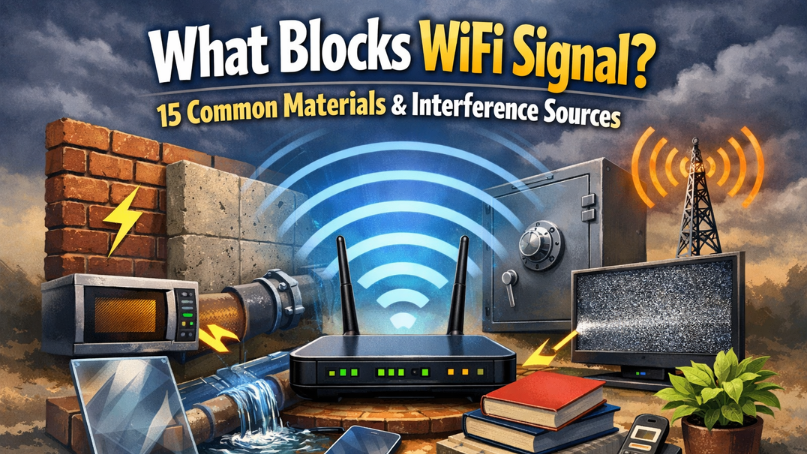
Slow WiFi is not random. If you are asking what blocks WiFi signal, the short answer is this: thick walls, metal, water, appliances, and crowded wireless devices weaken or reflect the signal before it reaches your phone or laptop. WiFi works using radio waves. Those waves lose strength when they pass through dense objects or compete with other signals. In many US homes, the real problem is not the internet provider. It is building materials, home layout, and hidden interference. When you understand what blocks a wireless signal and why it happens, you can fix most issues without upgrading your plan.
I have worked with home networks for over two decades. In most cases, small changes made a huge difference. Let’s break this down clearly and practically.
How WiFi Signals Actually Work (Simple Explanation)
WiFi uses radio frequency signals, usually 2.4 GHz or 5 GHz. Newer routers also use 6 GHz (WiFi 6E and WiFi 7). These signals travel through air and objects. But they get weaker over distance. This is called signal attenuation.
Think of WiFi Interference like light from a flashlight. In an empty hallway, it travels far. Add walls, furniture, and metal, and the light fades fast.
The 2.4 GHz band travels farther but is slower. The 5 GHz band is faster but struggles more with walls. The 6 GHz band is even faster but more sensitive to obstacles.
So when people ask what blocks WiFi signal the most, the answer depends on frequency, distance, and materials in the path.
The 15 Most Common Things That Block WiFi Signal
These are the materials and sources I see most often in US homes and offices causing weak wireless signal strength.
1. Concrete Walls
Concrete is one of the biggest WiFi signal killers. It is dense and often reinforced with metal.
In apartments and basements, concrete walls absorb radio waves quickly. If your router sits behind two concrete walls, the signal may drop by half or more.
2. Brick Walls
Brick is better than concrete, but it still weakens WiFi. Older US homes with thick brick exteriors often struggle with backyard coverage.
One client had full bars inside but zero signal on the patio. The brick exterior was the barrier.
3. Metal Surfaces and Objects
Metal reflects WiFi signals. It does not absorb them. It bounces them away. Common examples:
- Filing cabinets
- Metal doors
- Refrigerator
- Metal shelving
- HVAC ductwork
If your router sits near a large metal object, signal reflection can create dead zones.
4. Mirrors
Many people are surprised by this. Mirrors have a thin metal layer inside. That layer reflects radio waves.
A large wall mirror can reduce signal in the next room.
5. Water
Water absorbs WiFi signals. Fish tanks, water heaters, and even large water pipes can weaken signal strength.
I once tested a home where a 75-gallon aquarium sat between the router and living room. Moving the router just three feet improved speed instantly.
6. Thick Wood and Furniture
Solid wood doors and heavy bookcases can block or weaken WiFi. Especially when placed directly in the signal path.
A bookshelf filled with books is surprisingly dense.
7. Tile and Stone
Kitchen backsplashes and stone fireplaces reduce signal power. Tile may not seem heavy, but layered materials matter.
8. Plaster Walls with Metal Lath
Older US homes often use plaster walls supported by metal mesh. That mesh blocks WiFi more than drywall.
Many homeowners upgrade routers when the real issue is wall structure.
9. Microwaves
Microwaves operate near 2.4 GHz. That overlaps with standard WiFi.
When a microwave runs, it can cause temporary interference. If your router sits near the kitchen, you may notice speed drops during cooking.
10. Cordless Phones (Older Models)
Older cordless phones also use 2.4 GHz frequency. They can compete with WiFi signals. Modern phones use different bands, but older homes still have interference issues.
11. Bluetooth Devices
Bluetooth uses 2.4 GHz as well. Usually interference is minor. But in homes with many smart devices, it adds up.
Smart watches, speakers, gaming controllers, and keyboards all share airspace.
12. Neighboring WiFi Networks
In cities and apartments, signal congestion is huge.
Open your WiFi scanner and you may see 20+ networks overlapping. That crowding reduces speed and stability.
Channel overlap is one of the biggest hidden problems in dense US neighborhoods.
13. Baby Monitors and Smart Home Devices
Some baby monitors use 2.4 GHz. Smart home cameras and IoT devices often stay on 2.4 GHz too.
Too many connected devices can create wireless interference.
14. Floors in Multi-Story Homes
WiFi travels downward better than upward. But thick floors, insulation, and subfloor materials weaken the signal.
Placing your router in the basement is rarely a good idea.
15. Distance Itself
Sometimes the biggest answer to what blocks WiFi signal is simply distance.
Every foot reduces signal strength. Every wall multiplies that loss.
In large US homes over 2,500 square feet, one router is often not enough.
Why These Materials Block WiFi (The Physics Made Simple)
Radio waves lose energy when they pass through dense material. The denser the object, the more energy gets absorbed or reflected.
Absorption turns signal energy into tiny amounts of heat. Reflection sends the signal bouncing away.
Higher frequencies like 5 GHz and 6 GHz are more sensitive. That is why people upgrading to faster routers sometimes notice a shorter range.
Understanding this helps you make better decisions about router placement.
Signs Something Is Blocking Your WiFi Signal
Here are patterns I see often:
- Strong signal near router, weak in next room
- WiFi drops when microwave runs
- Slow speeds only upstairs
- Dead zone behind large furniture
- Internet works fine at night but slow during peak hours
Each sign points to either material blockage or signal interference.
How to Fix WiFi Signal Blocking Problems
Now let’s solve it.
Step 1 – Move Your Router
Router placement fixes more problems than expensive upgrades. Place it:
- In a central location
- Elevated on a shelf
- Away from metal and appliances
- Out in the open
Avoid closets and cabinets.
Step 2 – Change WiFi Channel
If neighbors are crowding your channel, switch it manually in router settings.
For 2.4 GHz, use channels 1, 6, or 11 only. These do not overlap.
Step 3 – Use 5 GHz or 6 GHz for Speed
If you are close to the router, connect to 5 GHz or 6 GHz for faster performance.
Use 2.4 GHz for distance and smart devices.
Step 4 – Consider a Mesh System
Large homes benefit from mesh WiFi systems. They spread coverage evenly.
In 2026, mesh networks are becoming the standard in US households over 2,000 square feet.
Step 5 – Reduce Interference
Keep routers away from:
- Microwaves
- Baby monitors
- Thick walls
- Metal objects
Small spacing adjustments often improve signal by 20-30%.
Expert Prediction for 2026 and Beyond
As more homes adopt WiFi 6E and WiFi 7, signal speed will increase. But higher frequency bands are more sensitive to physical barriers.
Future homes will rely more on mesh systems rather than single routers.
Smart home devices will continue increasing wireless congestion. Network planning inside homes will matter more than internet speed plans.
People will search more using voice queries like:
- “Why is my WiFi weak in one room?”
- “What blocks wireless signals in a house?”
- “How do I stop WiFi interference?”
Clear, problem-solving answers will rank better in AI search and Google AI Overviews.
Quick Practical Checklist
If your WiFi is weak:
- Move router to center of home.
- Raise it above furniture.
- Keep away from metal and kitchen.
- Switch channel if crowded.
- Add mesh if the home is large.
Simple changes fix most signal blocking issues.
Final Thoughts Control What You Can
If you came here asking what blocks WiFi signals, now you know the real reasons. Concrete, metal, water, interference, and distance are the main barriers. Most problems are physical, not provider-related.
I have seen families upgrade plans three times when the real fix was moving the router out of a cabinet.
WiFi is invisible, but its behavior follows simple rules. When you understand those rules, you take control of your network.
Start with placement. Then adjust channels. Then expand coverage if needed.
Small changes today can give you faster, more stable internet without spending extra money.
If this guide helped you understand your WiFi better, take five minutes today to test one improvement. You might be surprised how much stronger your signal becomes.
FAQ
1. What blocks the WiFi signal the most in a house?
Concrete walls, metal surfaces, and large amounts of water block WiFi signal the most. Concrete absorbs radio waves, while metal reflects them away. Thick brick, plaster walls with metal mesh, and large appliances can also weaken the signal. In many U.S. homes, the biggest issue is router placement near these materials.
2. Does metal completely block WiFi?
Metal does not always completely block WiFi, but it reflects the signal and can create dead zones. Large objects like refrigerators, metal filing cabinets, or ductwork can disrupt coverage. If your router is near metal surfaces, moving it a few feet away can improve signal strength quickly.
3. Do walls really block WiFi signal?
Yes, walls can weaken WiFi. Drywall causes minor signal loss, but brick, concrete, and plaster with metal backing cause much stronger interference. The thicker and denser the wall, the more signal strength drops. Multi-wall setups reduce WiFi speed more than most people expect.
4. Why is my WiFi strong in one room but weak in another?
This usually happens because of physical barriers or interference. Thick walls, mirrors, appliances, or distance from the router reduce signal strength. Neighboring WiFi networks can also crowd your channel. Changing router position often fixes uneven coverage.
5. How can I improve WiFi if something is blocking the signal?
Start by moving your router to a central, elevated location away from metal and appliances. Switch to a less crowded channel. Use the 5 GHz band for speed if you are close to the router. In larger homes, a mesh WiFi system can eliminate dead zones.