
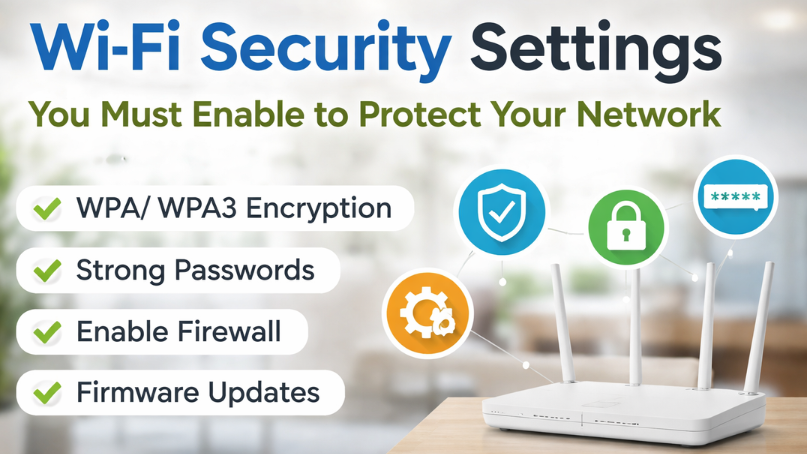
A home Wi-Fi network connects everything from smartphones and laptops to smart TVs and security cameras. While convenience is high, security risks are often ignored. An unsecured Wi-Fi network can allow hackers to steal personal data, slow down your internet, or even take control of connected devices. The good news is that most modern routers already include strong security features-you just need to enable them. This guide explains the most important Wi-Fi security settings you must turn on to keep your network safe.
Use Strong Wi-Fi Encryption (WPA3 or WPA2)
The first and most important security setting is encryption. Encryption protects the data sent between your devices and the router.
Always use:
- WPA3 if your router supports it
- WPA2-AES if WPA3 is not available
Avoid older options like WEP or WPA, as they are outdated and easy to break. You can change encryption settings by logging into your router’s admin panel and selecting the wireless security section.
Change the Default Router Login Details
Many users secure their Wi-Fi password but forget about the router’s admin login. Default usernames and passwords are widely available online and can be exploited easily.
What you should do:
- Change the admin username if possible
- Set a strong admin password with letters, numbers, and symbols
- Avoid using the same password as your Wi-Fi network
This step prevents unauthorized access to your router settings.
Create a Strong and Unique Wi-Fi Password
A weak Wi-Fi password makes it easy for attackers to access your network. Avoid simple passwords like names, birthdays, or common phrases.
Tips for a strong Wi-Fi password:
- At least 12 characters long
- Mix uppercase, lowercase, numbers, and symbols
- Do not reuse passwords from other accounts
Changing your Wi-Fi password once or twice a year is also a good habit.
Disable WPS (Wi-Fi Protected Setup)
WPS was designed to make connecting devices easier, but it can create serious security risks. Attackers can exploit WPS using brute-force methods.
Even if your router has a button-based WPS option, it’s safer to turn it off completely. You can connect devices manually using the Wi-Fi password instead.
Enable Router Firewall Protection
Most routers include a built-in firewall, but it may not be enabled by default. The firewall blocks suspicious traffic and prevents unauthorized access attempts.
Make sure:
- Router firewall is turned ON
- SPI (Stateful Packet Inspection) is enabled if available
This adds an extra layer of protection against online threats.
Turn On Automatic Firmware Updates
Router firmware updates fix security vulnerabilities and improve performance. Running outdated firmware can expose your network to known exploits.
Best practices:
- Enable automatic firmware updates
- Check manually for updates every few months
- Only install updates from the router manufacturer
Keeping firmware up to date is one of the easiest ways to improve network security.
Disable Remote Management Access
Remote management allows access to your router settings from outside your home network. While useful in some cases, it increases security risks.
Unless you specifically need it:
- Turn off remote management
- Disable access over WAN (internet side)
This ensures that router settings can only be accessed from devices connected to your local network.
Set Up a Guest Wi-Fi Network
If visitors frequently use your Wi-Fi, sharing your main password is not a good idea. A guest network keeps your main devices isolated.
Benefits of a guest network:
- Protects personal devices and files
- Limits access to internal network resources
- Allows easy password changes for guests
Make sure the guest network has its own strong password and limited permissions.
Monitor Connected Devices Regularly
Many routers show a list of all connected devices. Checking this list helps you spot unknown or suspicious connections.
What to look for:
- Devices you don’t recognize
- Old devices no longer in use
- Unauthorized smart gadgets
Remove any unfamiliar devices and change your Wi-Fi password immediately if needed.
Disable UPnP If Not Required
Universal Plug and Play (UPnP) allows devices to open ports automatically. While convenient, it can be abused by malware.
If you don’t use online gaming consoles or specific smart devices that require UPnP, it’s safer to disable it from router settings.
Final Thoughts
Protecting your Wi-Fi network doesn’t require advanced technical knowledge. By enabling the right security settings, you can prevent unauthorized access, protect personal data, and maintain stable internet performance. Strong encryption, secure passwords, regular updates, and basic monitoring go a long way in keeping your network safe.
Take a few minutes today to review your router’s security settings. A secure Wi-Fi network not only protects your devices but also gives you peace of mind.