Linksys App
Setup & Download Guide
Set up and manage your Linksys Wi-Fi router with ease using the Linksys Router App. Follow our step-by-step guides and troubleshooting tips for a better network experience.
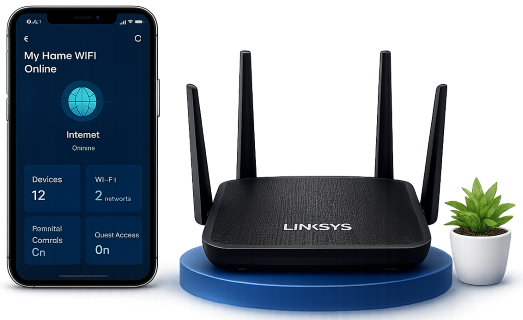
Set up and manage your Linksys Wi-Fi router with ease using the Linksys Router App. Follow our step-by-step guides and troubleshooting tips for a better network experience.
Linksys WiFi Routers are built to provide fast, secure, and reliable wireless connectivity for homes and small businesses. You can quickly set up and manage your Linksys router using the Linksys Router App, available for Android on the Google Play Store and iPhone/iPad on the Apple App Store. The app walks you through the complete installation process, allowing you to configure your wireless network in just a few minutes. If you prefer, you can also manage your router through the Linksys web interface using myrouter.local or the default IP address.
The Linksys Router App supports most modern Linksys WiFi 5, WiFi 6, WiFi 6E, and Mesh WiFi systems, including Linksys Velop devices. Using the app, you can monitor connected devices, optimize network performance, update router firmware, enable parental controls, create guest WiFi networks, prioritize devices, and manage your home network remotely from anywhere. Some internet service providers (ISPs) may require additional internet configuration during the initial setup process.
Linksys App - Easy Setup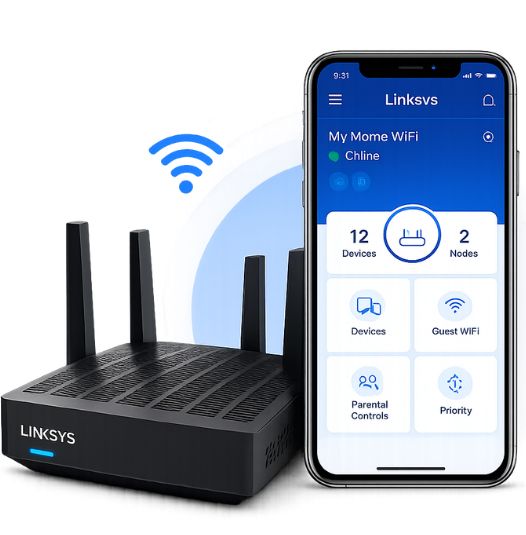
Set up your Linksys router quickly with the guided installation wizard.
View, monitor, and manage all connected devices from one dashboard.
Monitor your WiFi network and connection status in real time.
Test your internet speed directly from the Linksys App anytime.
Create a separate guest network without sharing your main password.
Keep your router secure and updated with the latest firmware.
Manage online access and set internet schedules for family members.
Access and manage your Linksys WiFi network from virtually anywhere.
Install the Linksys App and set up your Linksys WiFi router in just a few easy steps.
Yes. Download Linksys App for free on Android and iOS devices. The Linksys Router App lets you set up and manage your compatible Linksys router with ease. Once installed, you can use it to set up your compatible Linksys router, monitor connected devices, change WiFi settings, and perform other network management tasks.
The Linksys App supports many modern Linksys WiFi routers and Velop mesh systems. Compatibility may vary by model, so it is recommended to use the latest version of the app and keep your router firmware updated for the best experience.
Yes. By signing in with your Linksys account and enabling remote management, you can access your network from virtually anywhere. This allows you to check connected devices, update settings, and troubleshoot your network even when you're not at home.
Open the Linksys App and navigate to your router's settings. If a firmware update is available, the app will usually notify you. Install the update while keeping your router powered on to ensure the process completes successfully.
If the Linksys App cannot detect your router, make sure your mobile device is connected to the router's WiFi network, verify that the router is powered on, and restart both the router and your phone. If the issue continues, check that your router model is supported and that Bluetooth and location permissions are enabled if required by the app.
Explore our collection of detailed Linksys setup, configuration, and troubleshooting guides.
Linksys MR9600
Linksys MR7500
Linksys MX4200
Linksys MX5300
Linksys MX8500
Linksys EA7300
Linksys EA7500
Linksys Velop MX4200
Linksys Velop MX5300
Linksys Velop MX8500
Linksys Velop AX4200
Linksys Velop AX5300
Whether you're installing a new compatible router or resolving an existing issue, Download Linksys App and follow our easy-to-follow guides. The Linksys Router App helps you browse setup tutorials, troubleshooting articles, and FAQs to get your network running smoothly.
Let's Activate Your DeviceDisclaimer: This mobile app is an independent informational resource created to provide setup guides, tutorials, and troubleshooting assistance for users of compatible Linksys networking products and the Linksys App. We are not affiliated with, endorsed by, sponsored by, or officially associated with Linksys Holdings, Inc. or any of its brands or products. All trademarks, product names, logos, and company names are the property of their respective owners and are used solely for identification purposes.